You do not need a camera to start light painting. The phone in your pocket can capture glowing trails, orbs and written words tonight, using tools it probably already has. We are Ants on a Melon - we design light painting gear in Oregon around the app-controlled RGB Critter BT - and this is the phone-first tutorial: what iPhone and Android can each actually do, a five minute setup, the first three shots to try, and fixes for the ways phones fight you in the dark. A manual camera still gets cleaner results, and we link the deeper tutorials as you go, but nothing on this page requires one.
The short version
iPhone
Live Photo + Long Exposure effect
Take a Live Photo of the moving light, then switch the effect to Long Exposure in the Photos app. It blends roughly three seconds of motion into one frame.
About 3s
Android
Pro or Manual camera mode
Many models expose real controls in the stock camera app: shutter speeds up to 30 seconds, manual ISO and manual focus.
Up to 30s
Any phone
A long exposure app
Search the app store for "long exposure", "slow shutter" or "manual camera". Any app that holds the shutter open for 10 to 30 seconds works.
App route
Why phones can suddenly do this
Long exposure photography used to require a camera with a manual shutter. Phones caught up from two directions at once. Apple went the computational route: a Live Photo quietly records a short burst of motion around the moment you press the shutter, and the Photos app can merge that motion into a single long-exposure-style frame. Android makers went the traditional route and simply exposed the manual controls, so a Pro or Manual mode on many models will hold the shutter open for up to 30 full seconds, exactly like a dedicated camera.
And for any phone that has neither, the app stores are full of apps that do real long exposures. We deliberately are not endorsing a specific one - they change fast - but searching "long exposure" or "slow shutter" surfaces plenty, and any app that lets you set a 10 to 30 second shutter will run every technique in this tutorial.
iPhone: the Live Photo trick, step by step
-
Turn Live Photos on. It is the concentric-circles icon in the Camera app; make sure it is not crossed out.
-
Make the phone immovable and set the self-timer. The whole trick fails if the phone moves even slightly during the capture.
-
Move the light during the shot. A Live Photo records roughly three seconds of motion, so start moving the light just before the shutter fires and keep moving through it.
-
Apply the effect. Open the shot in the Photos app and switch the effect to Long Exposure. The phone blends the motion into one frame, and the moving light becomes a trail.
The three second window is the constraint to design around. Keep written words to three or four letters, keep orbs small and fast, and use a brighter light than you think you need, because the effect rewards strong, confident trails. It also softens anything that moved, which is why the phone must be rock steady: on a tripod the background stays sharp and only the light smears.
Android: Pro mode is a real manual camera
If your phone has a Pro or Manual mode (check the mode carousel, and the "More" tab if you do not see it), you get the same control a dedicated camera offers, and the settings from our full light painting photography tutorial apply directly. Start with a 10 to 15 second shutter, ISO 100 to 200, manual focus, and white balance fixed on Daylight so the colors you pick on the light are the colors you get. Fifteen seconds is enough to write a whole word or spin a full orb, which is the real advantage over the iPhone effect.
Two caveats. Some models cap the Pro mode shutter at a second or two, in which case the app route above is your answer. And Pro mode usually saves brighter, flatter files than the point-and-shoot mode, because the computational processing steps aside - that is normal, and it grades nicely afterward.
The setup: five minutes, four decisions
-
Make the phone immovable. A cheap phone tripod is ideal, but a phone propped against a stack of books, wedged into a shoe, or leaned on a wall works. Any movement smears the whole frame, not just the light.
-
Fire with the self-timer. Tapping the screen shakes the phone at the worst possible moment. Use the 3 or 10 second timer, then get to your mark.
-
Lock focus and exposure before it gets dark in frame. On iPhone, press and hold on your subject spot until AE/AF Lock appears, then drag the exposure slider down until the scene looks nearly black. In Pro mode, set manual focus while a light stands on your mark, then leave the ring alone.
-
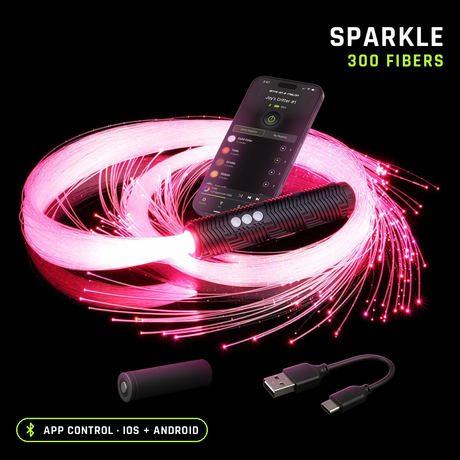
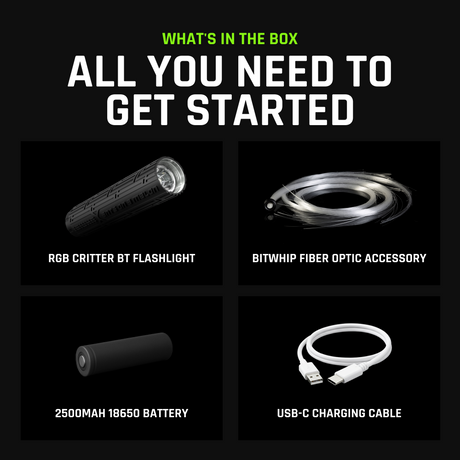
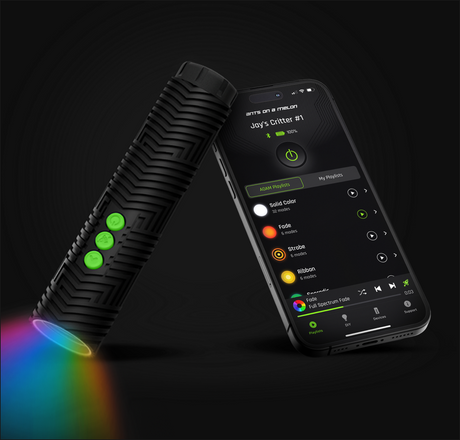
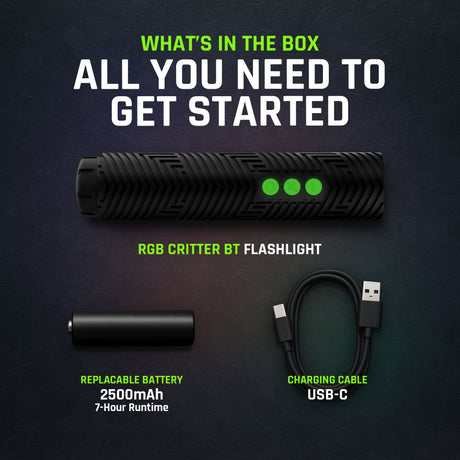
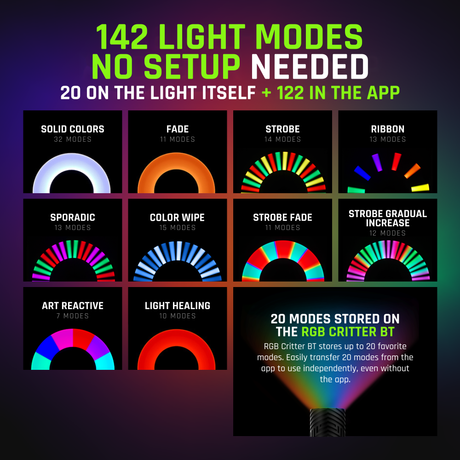
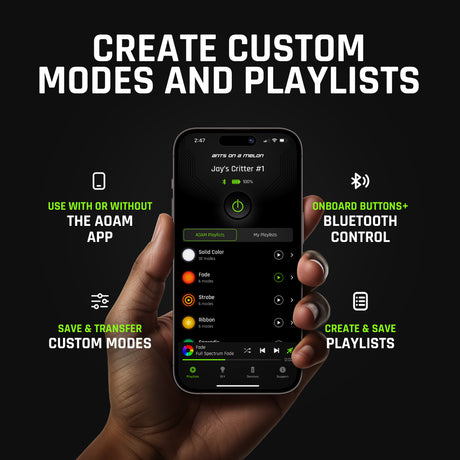
Get real darkness and one bright color. A dark room with the curtains drawn or a yard away from streetlights is your canvas. For the brush, we use the RGB Critter BT: 170 lumens, app-controlled, 16.7 million colors and 145+ modes, so you can set an exact color and brightness per attempt, and it works without the app too. Any bright single-color light gets you started.
Your first three shots tonight
1. Streaks. The confidence builder. Start the exposure, walk through the frame sweeping the light in slow S-curves, and stay moving so the camera never records you, only the trail. One attempt is usually enough to hook people.
2. A short word. Face the camera and draw the letters in the air, switching the light off between strokes. Your first word will come out mirror-reversed - that is normal, and the two fixes (write backwards, or flip the photo) are covered properly in our light writing tutorial. On an iPhone keep it to three or four letters; on Android or an app, a 15 second shutter fits a whole name.
3. An orb. Spin the light on a short string in a steady vertical circle while slowly turning your body in place, and the overlapping circles stack into a floating sphere. The full spin-and-turn method, settings and troubleshooting live in our light orb tutorial; the phone-specific note is that the iPhone effect only captures about three seconds, so spin small and quick, while Android Pro mode at 20 to 30 seconds handles the classic full-size orb.
Troubleshooting: when the phone fights back
-
The scene keeps brightening itself. Auto exposure and HDR see a dark frame and try to fix it, washing out your trails. Lock exposure and drag it down until the preview looks almost black; in Pro mode, low ISO does the same job.
-
Focus hunts in the dark. Autofocus needs light to work with. Stand a lit object on your mark, lock focus on it (or focus manually in Pro mode), and do not refocus once the room goes dark.
-
Night mode is not long exposure. It stacks many short frames and deliberately removes motion blur, which is the opposite of what you want - trails come out faint, chopped or missing. Use the Live Photo effect, Pro mode or an app instead, and turn Night mode off if it keeps activating.
-
Trails are faint or broken. The light is too dim, too far away, or moving too fast for a small phone sensor. Slow down, come closer to the camera, and turn the brightness up - on the Critter that is one slider in the app.
The honest part: what a phone cannot do
A phone gets you started tonight, and that is genuinely its job. But the sensor is small, the iPhone effect is locked to its roughly three second window, and heavy processing decides things a photographer wants to decide. A camera with manual mode shooting 10 to 30 seconds at ISO 100 to 400 in RAW will give you cleaner blacks, brighter saturated trails and full control over the drawing time. When you get there, our light painting photography tutorial covers the camera route end to end, and the seven core techniques transfer exactly as learned - the light, the motion and the darkness do not care what recorded them.
That is also why the light is the better first purchase than a camera: everything you learn and buy on the phone carries over the day you upgrade the body behind it.
Gear you'll want
One light for every shot on this page
RGB Critter BT
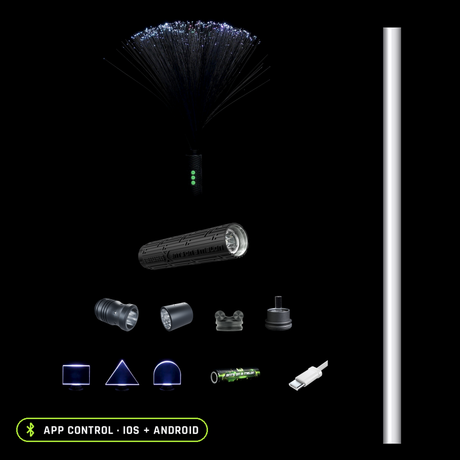
$149.95. App-controlled, 170 lumens, 16.7 million colors, 145+ modes and custom playlists; works without the app, and powers 200+ twist-on tools.
Pick your own combination
Kit Builder
Choose the light, tools and spares in one build.
Phone light painting FAQ
Can you do light painting with an iPhone?
Yes. Take a Live Photo of a moving light with the phone held perfectly still, then open it in the Photos app and switch the effect to Long Exposure. The effect blends roughly three seconds of motion into a single frame with glowing trails.
How do I take a long exposure on Android?
Open your camera's Pro or Manual mode and set the shutter to 10 to 30 seconds with ISO 100 to 200 and manual focus. Many models include this in the stock camera app; if yours does not, a long exposure app from the app store does the same job.
Is Night mode the same as long exposure?
No. Night mode stacks many short frames and works to remove motion blur, which erases light trails instead of drawing them. Use the Live Photo Long Exposure effect, Pro mode, or a long exposure app instead.
Do I need a tripod for phone light painting?
You need the phone perfectly still, which a cheap phone tripod or a phone propped against a stack of books both achieve. Start every shot with the self-timer so tapping the screen does not shake it.
What light works best for phone light painting?
A bright light in one solid color reads cleanest on a small phone sensor. We use the RGB Critter BT because you can set an exact color and brightness from the app, but any bright single-color light will get you started.
Why are my light trails faint or broken?
Usually auto exposure fighting you. Lock exposure and drag it down until the scene looks almost black, then move the light more slowly and closer to the camera. In Pro mode, raise brightness on the light before you touch ISO.

Ants on a Melon team, Oregon
We design the RGB Critter BT and the light painting tools in this guide, we shoot with our phones as often as our cameras, and we would rather you buy the right gear than our gear.